YOUR LOG.
YOUR SETTINGS.
Starting count & optional goal
Use these settings when you have a reliable total or want your own target. For new openings, add a match above.
100 chests to your personal goal.
This is your own target. It is not an Epic quest requirement or a reward unlock.
KEEP THE LOG
BETWEEN RUNS.
The log stays on this browser and device. It cannot read Fortnite, your Epic account or another device. Private browsing, blocked storage or clearing site data can remove it. Download a backup before moving devices or changing browser settings.
Back up, restore or reset
Choose an FN Power Hour JSON backup, up to 100 KB. You can review its total before replacing anything.
Reset the total, goal and saved additions in this browser? Download a backup first if you want to keep them.
- Storage unavailable? Keep this tab open and export before leaving. The count still works in page memory.
- Wrong backup? Cancel the preview. Invalid files leave your current log intact.
- Using several tabs? Saved changes update the other tab. If this tab has unsaved changes, export them before loading the other tab’s log.
Counts are not put in a shared link or explicitly sent as custom analytics events. Public-site analytics are explained in Privacy.
FIND FORTNITE’S
CHEST COUNTER.
Open Quests → Treasure Hunt and read the chest-opening tasks. Use the task name, stage and progress together.
Open Quests on your playing account
Find the Treasure Hunt category. “Treasure Hunters” is the season name; the quest panel uses the shorter label.
Check which chest task you are reading
The screenshot has separate Rare Chest and Sprite Chest progress. Read its stage and target before using a number as your starting note.
Keep your browser log separate
A manual tally records what you enter here. It cannot verify quest credit, restore missed matches or prove an account-wide total.
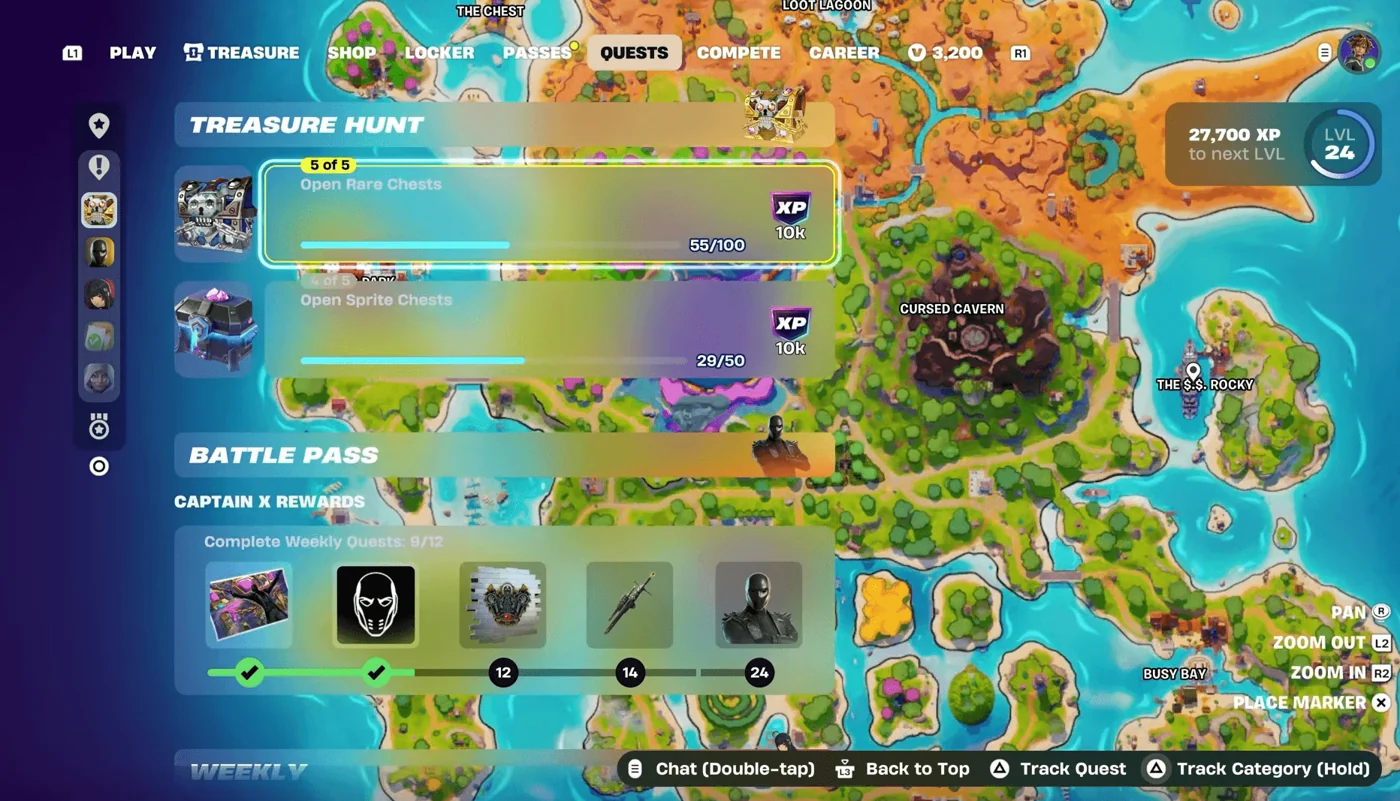
Menu navigation: GAMES.GG’s chest-counter guide. The screenshot establishes the stage/type distinction; it does not establish an unlimited total counter.
COUNT ONCE.
UNDO MISTAKES.
Example: a personal goal of 100
- Review and confirm a starting total of 80.
- After one match, add 10. The total is 90.
- Add one more opening. The total is 91, with 9 left to your goal.
- If that last tap was a mistake, select Undo. You are back at 90.
If your later reliable total is 95, review and confirm a total change to 95. Adding 95 would count the earlier openings twice.
Count an opening once. Pick a consistent rule for your own log and do not include teammates’ openings or ammo boxes by accident. This tool does not decide whether any container met an in-game quest condition.
You can continue after 100, 1,000 or your own target. Progress toward a personal goal says nothing about how close the next chest is to a rare drop.
MAKE THE NEXT
HUNT MORE USEFUL.

Need to find the next chest?
Epic describes the Fortune variant as revealing nearby chests. Chester can supply extra chest loot and cancel fall damage. These are route aids; neither description promises a Pirate Shop Access rate increase.
Compare real Sprite abilitiesAbilities: Epic’s Treasure Hunters notes. Character artwork: Epic Games, via Sprite List.
Use the chest indicator to check the floor
In v43.10, Visualize Sound Effects adds an up or down arrow when a chest is above or below you. Open Settings → Audio → Sound → Visualize Sound Effects in Fortnite to enable it.
- Find the chest indicator and read its height arrow.
- Use an accessible stairway or lower approach, then check the indicator again.
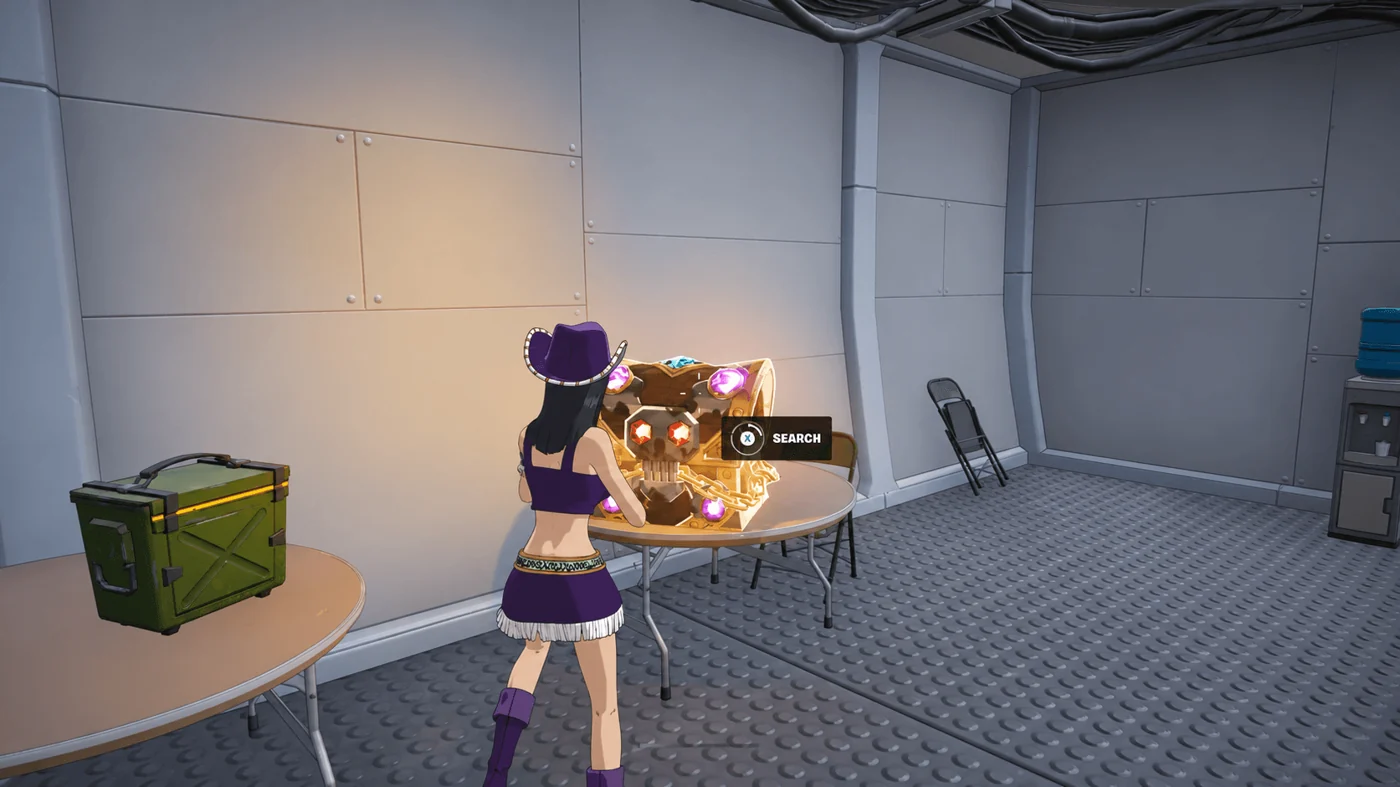
- Confirm the actual chest and its Search prompt before recording an opening.
Source: Epic’s BR team · 12 November quality-of-life notes. A chest indicator is different from a Vault Key marker.