WHAT DO YOU
WANT TO COUNT?
Playing on a console with your phone nearby? The browser log can sit beside the game. Looking back at PC matches? First check whether the replay files still exist.
Use the manual chest counter
Keep the log on your phone or in a browser. Add the openings you counted after each match, undo mistakes and keep a backup between devices.
Open my chest logTHREE RECORDS.
DIFFERENT SCOPES.
| Method | What it records | What to check |
|---|---|---|
| Fortnite quest panel | The progress shown on a named chest-opening task. | Chest type, task stage and target. Read its named period and target. |
| Manual browser log | The starting total and new openings you enter. | Your own entries. Save a backup before changing browser or device. |
| PC replay counter | Openings parsed from the local replay files a tool supports. | Available files, supported game version and the matches already included in your log. |
FIND THE COUNT
INSIDE FORTNITE.
Open the quest panel
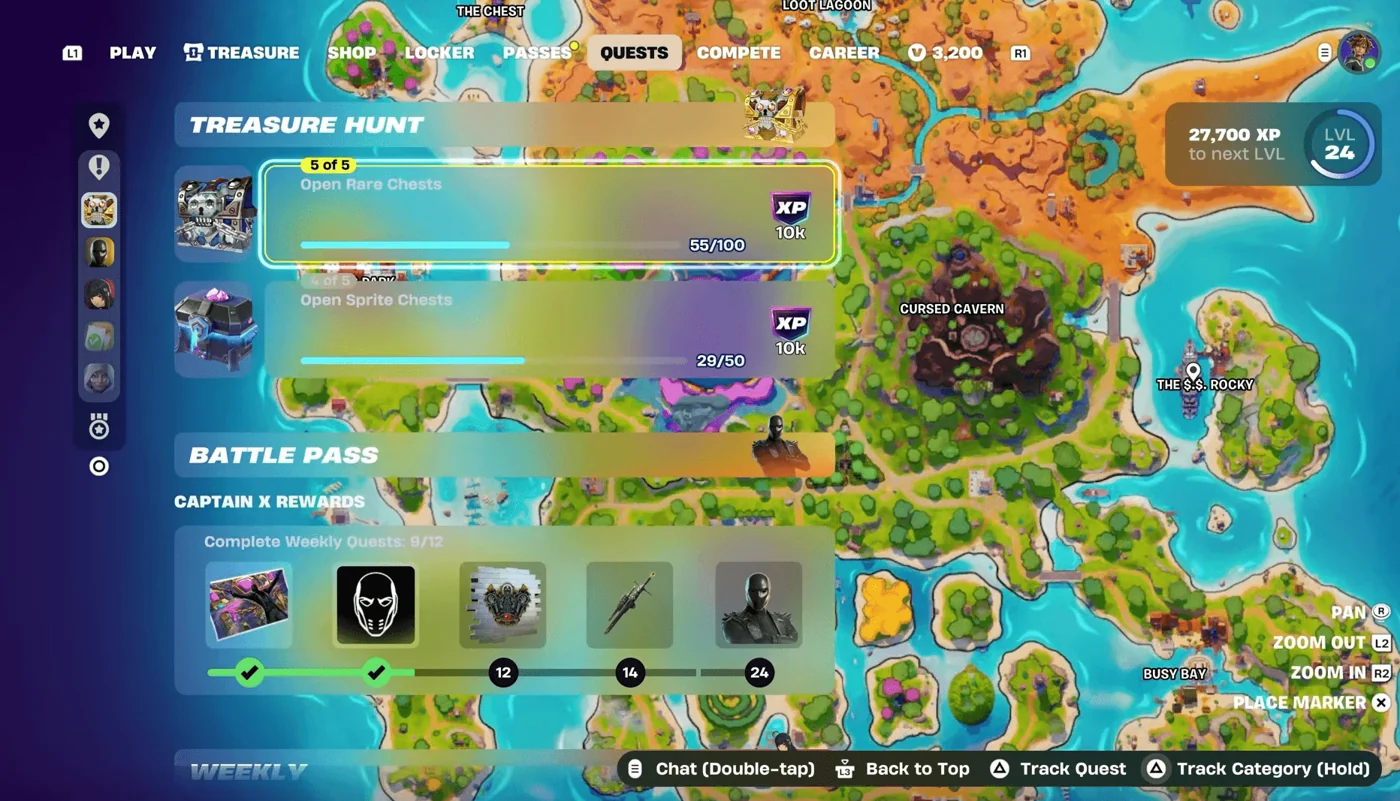
On your playing account, open Quests → Treasure Hunt. The season is called Treasure Hunters; the category in the pictured menu uses Treasure Hunt.
Read the whole task row
Check the chest type, stage and fraction. In the example above, Rare Chests show stage 5 of 5, 55/100; Sprite Chests show stage 4 of 5, 29/50.
Decide what the number covers
Those rows track separate tasks and stages. Keep a running total in your own log as stages complete or disappear.
Menu and original screenshot: GAMES.GG’s Treasure Hunt counter guide. Read the current task’s chest type, stage and cap.
A CLEAN START.
NO DOUBLE COUNT.
Choose a starting point you can explain: a total you already recorded, or zero for a new counting period. For a quest-stage number, label the log with that task and stage.
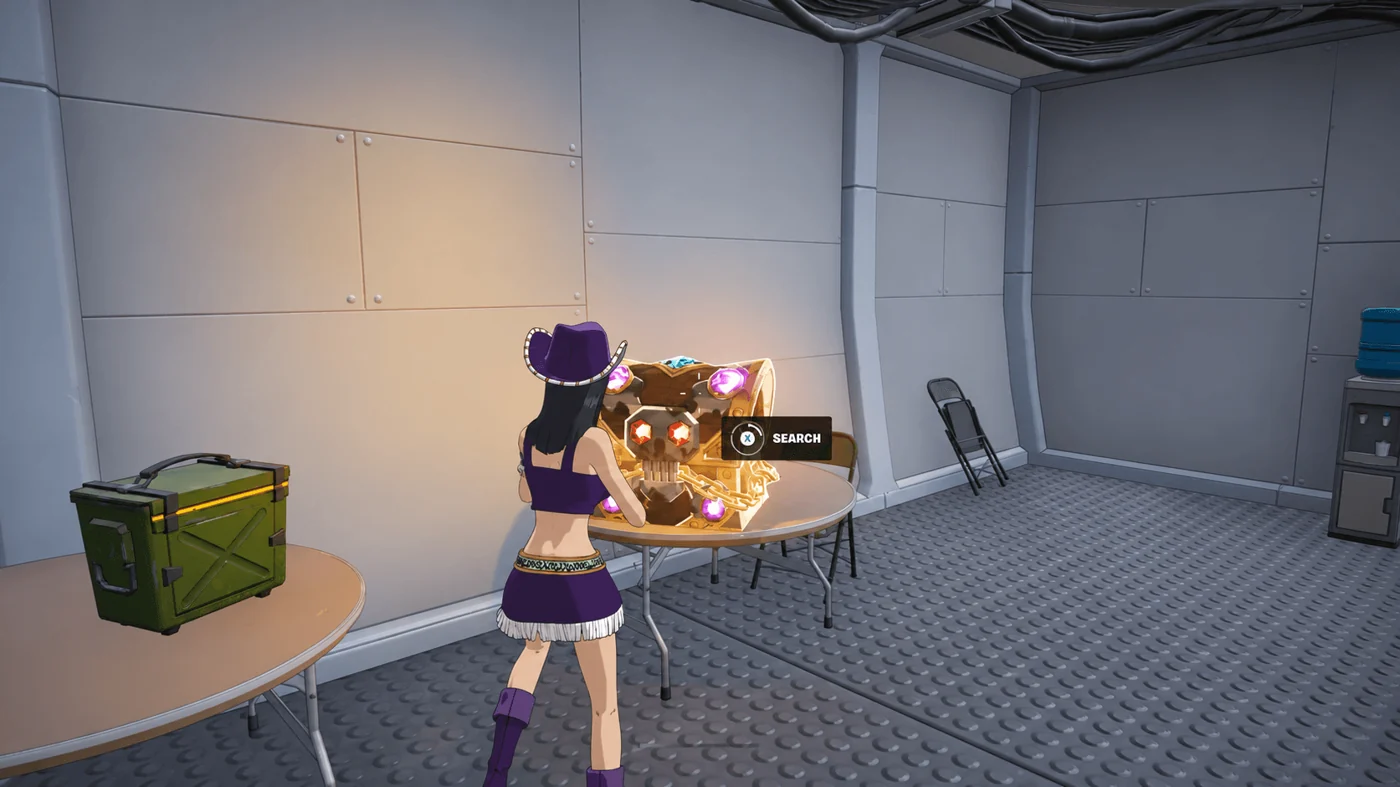
Example: 80 before a match, 12 new openings
Set the starting total to 80 once. After the match, add 12. The log now reads 92. Do not add 92 again: that would count the first 80 twice.
In the tracker, a total change replaces the previous tally after confirmation. A batch addition adds only the new openings. Undo removes the last whole addition.
Use the same scope each time. Do not mix your squad’s openings, ammo boxes or replay totals with your personal chest log unless that is the record you intentionally chose.
COMPARE THE SAME
SET OF MATCHES.
Start a comparison by naming the chest type and the period each number covers. A quest panel can show progress within its current stage, a manual log can span several sessions, and a replay counter covers the saved matches its reader supports. Those totals can all be useful while describing different sets of openings. Write down that scope before changing your saved manual total.
- Read the quest name, stage and progress together. Keep Rare Chest and Sprite Chest tasks separate.
- For a replay batch, list the matches or dates represented by those files.
- Compare that period with the matches already entered in your browser log.
Suppose your log contains ten openings from the first match and a replay batch covers that match plus eight openings from the next one. Add only the eight new openings if both records use the same counting rule. If you instead choose eighteen as a reliable replacement total, use the replacement control and review its confirmation. Keep a backup before replacing a record whose earlier history you still need.
Before closing a session, keep the backup with a name that identifies its date and browser record. Review the destination total after any restore and keep the source copy until you have checked the result. Use one continuing record for new openings so the next comparison starts from a clear period. When the scope remains unclear, keep the two records separate and continue with the method you can check. Open the manual counter for the next match, or return to the relevant quest and replay instructions above to identify the missing period.
CAN A TRACKER
COUNT AUTOMATICALLY?
Some PC tools count saved replays instead of asking you to tap for each opening. Their coverage depends on the saved files they can read.
- Check Fortnite’s Settings → Game → Replays group. Epic documents replay controls and the Career replay browser.
- For a Windows file-based counter, check that you have local .replay files and a game version supported by that tool.
- Check the tool’s counting scope before importing a total into your manual log. A replay batch may overlap matches you already counted.
For example, Burnaviour’s author README describes a Windows counter that reads completed matches. It updates from completed matches and scans the replay files saved on that Windows PC. For console or cloud sessions, use the manual log.
Replay settings and version limits: Epic’s replay help. The linked README describes the replay tool’s behavior. Use this website’s tracker to record openings manually.
WHEN A COUNT
DOES NOT MATCH.
Can I keep counting after the quest is finished?
Yes, in your own manual log. You choose the size of your personal goal. Start with a total you know and record later openings once; label the new log with its starting date.
Why does a replay counter show fewer chests?
It may cover only the saved, readable matches. Check the dates and tool compatibility. Epic notes that game updates can affect replay playback. Label your total with the dates covered by those files.
Where does the tracker save my chest count?
Use the FN Power Hour counter to enter chest openings and save them in this browser. Transfer your log between browsers with a JSON backup.
How do I compare the chance across 1,000 chests?
Use the published-rate model to understand probability, then check your actual reward in Fortnite.