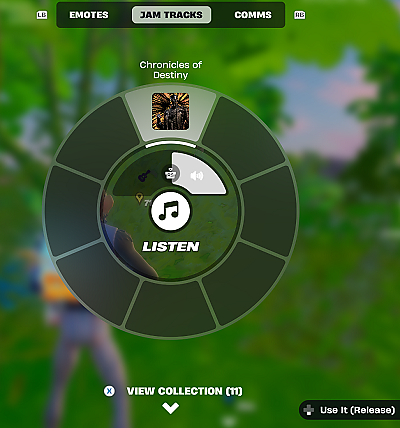
Start listening
- Top tab
- Jam Tracks
- Below the wheel
- View Collection
-
Open the Emote Wheel
In a match, use the same control you use for emotes. Open the wheel and select the Jam Tracks tab at the top.
On keyboard or controller, check Settings for your Emote binding. Use the arrow-keys tab for keyboard or the gamepad tab for controller. On touch, look for the dancing figure on screen. Epic’s controls guide
Switch to Listen
Use the prompt in the center of the wheel to change to Listen. If your character pulls out an instrument, switch to Listen to play the song in the background. Pick a song you own, or open View Collection to choose from your library.
Check the track name
Look for the song title on screen. You can keep moving and searching while it plays.
Epic’s Jam Track Player instructions explain background playback and instrument play.
Switch or stop a track
- Switch songs
- Reopen the Jam Tracks wheel or your collection and choose another song in Listen.
- Stop playback
- Follow the Stop prompt next to the track name. Use the input shown for your controls.
Track playing with no sound? Check your audio.
Playback and track selection shown in Beebom’s Jam Track Player guide.
Fix playback or quest progress
- Listen is missing
- Check the center prompt in the Jam Tracks tab while in a match. Try Battle Royale if the mode you’re in has no Listen option. Creative islands need Jam Tracks enabled. Epic’s mode notes
- A song is missing
- Open View Collection and check Locker → Jam Tracks. For a pass reward, check that you unlocked and claimed it.
- The song name appears, but there’s no sound
- Check your device and game volume. Under Settings → Audio, check whether Licensed Audio is muted. Try another owned song to see if both are silent. Epic’s Licensed Audio help
- The quest counter doesn’t move
-
Confirm the quest is listed and the track name is on screen in Listen. Use Search on one unopened chest or ammo box, then check for a one-point increase.
Still at 0/25? If you started the song before landing, stop it and restart it in Listen on the ground. Search a fresh container and check the counter again. Players reported this retry helped. If the counter stays at zero, try the same test in a fresh Battle Royale match.
BIRDBRAIN and PPPP
Any owned track works for Listen. Find BIRDBRAIN in the Music Mini-Pass or check PPPP in the Week 3 rewards table.
Week 3 listening quest
Still see the 25-container objective in Quests? Follow the Week 3 container steps.